
SNAPSHOT TESTING IN AWS CDK PYTHON
NOTE: Since writing this post, I’ve switched from pytest-snapshot to syrupy. Check out my new post for more information. At Defiance Digital, we use the AWS CDK for almost everything. Generally we use TypeScript because it’s the original language for the CDK, everything using JSII transpiles back to TypeScript, and it has the most compability with the CDK. However, we have a few projects that use Python, and on those I’ve really been missing Jest snapshot testing.

MARK2 DEV KIT
If you’ve gotten involved with Neon.AI doing their developer bounties, you may have requested or received a Mark 2 Dev Kit instead of a production Mark 2. The original Mark 2 dev kits had an acrylic housing and some 3D printed parts. The newer Mark 2 dev kits generally come in an entirely 3D printed housing. The directions that get sent out with dev kits are a bit out of date. You may receive a dev kit that has some parts pre-assembled. These are the correct instructions for assembling a 3D printed Mark 2 dev kit.
HOME ASSISTANT INTEGRATION FOR OVOS
Home Assistant has a Mycroft integration available, but it is quite old, and as Neon and OVOS continue to separate from the original codebase it will become less functional. Additionally, it is not following Home Assistant integration development best practices. As of the 2023.6 series of releases, the integration does not work with Neon or OVOS running on the Mycroft Mark 2. I’ve made a preliminary integration for OVOS (which also works with Neon, being based on the same codebase). It is available at https://github.com/mikejgray/ovos-home-assistant-integration. It does not follow Home Assistant’s ConfigFlow convention right now, mostly because I was having difficulty understanding how to implement it, so it is a manual configuration. I will be working on that in the future.

RUNNING A FASTERWHISPER STT SERVER
Piggybacking off my post about running a local, private STT server, we’re going to take a look at running a FasterWhisper STT Docker image. FasterWhisper is an improvement on the open source Whisper STT project that adds some interesting features, including the ability to run exclusively via CPU, and using less memory. The large model is multi-lingual and does an excellent job of capturing punctuation. FasterWhisper is the current preferred STT solution for the OVOS team.
CONFIGURING LOCAL STT FOR OVOS/NEON
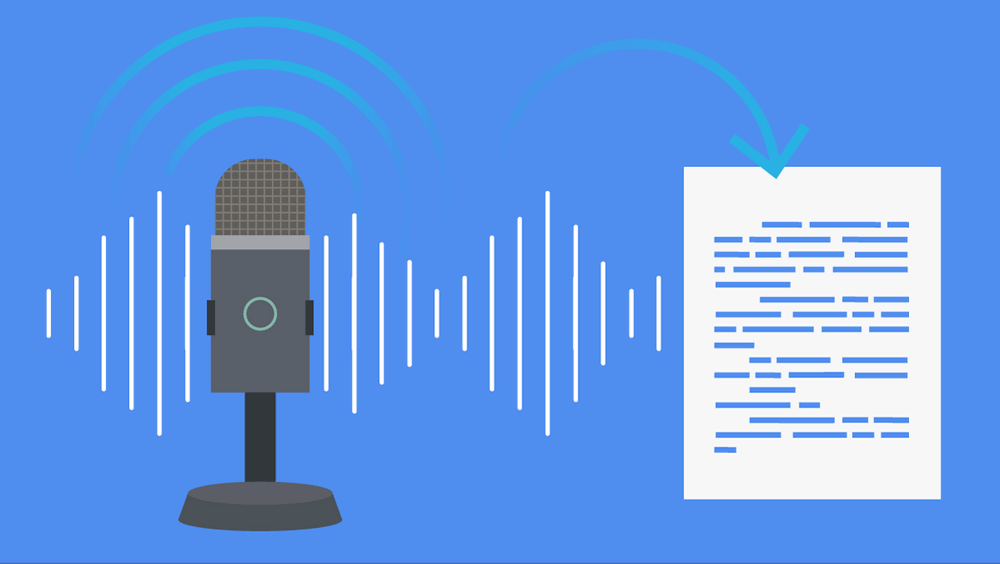
Neon.AI and OpenVoice OS (OVOS) both offer out-of-the-box smart speaker/voice assistant platforms, using a combination of their own aggregated text-to-speech (TTS) and speech-to-text (STT) hosted options as well as low-power open source engines in case the internet is not available. While both companies go out of their way to be as privacy-respecting as possible, ultimately I don’t want my voice assistant to be sending my voice to a server somewhere else on the internet or sharing the text that will be spoken aloud. I want it to be as private as possible, and I want to be able to use it even if my internet is down.
IMPROVING OCP PLAYBACK IN NEON/OVOS
One of the major improvements in OpenVoiceOS (OVOS) and, by extension, Neon, is OVOS Common Play (OCP). It’s an extension of the Mycroft Common Play framework that was intended to be a unified way to create skills for media playback (music, podcasts, movies, TV shows, etc.). OCP is fully featured enough to be considered a media player in its own right, and is the default media player in Neon and OVOS. This does mean that it is one of the few breaking changes in OVOS/Neon, but as older Mycroft media skills are converted to OCP and new skills are created, the loss in functionality should shrink.

INSTALLING NEON SKILLS
As of this writing (June 2023), the Neon voice assistant does not have a non-technical entrypoint to installing skills. This is partly due to the upstream project, OVOS, having other pressing priorities at the moment. However, it is possible to install skills on Neon, and it’s not terribly difficult. This guide will walk you through the process. SSH Access The Neon docs have a short section on Secure SHell (SSH) access to the Mark 2 Neon software, which is how you can install skills. By default, the Mark 2 is SSH-enabled, with a default username of neon and password of neon. The first time you log in, the password must be changed. SSH access is granted via the terminal.
PRIVATE PERSONAL VOICE ASSISTANTS
I’ve posted a few times about configuring and customizing OpenVoiceOS (OVOS) and Neon, but I haven’t yet written about what they are. OVOS and Neon are the spiritual and code successors to Mycroft, a personal, private voice assistant that gained some traction in 2016 with a successful Kickstarter campaign. That campaign was for their Mycroft Mark 1 device, which was built around a Raspberry Pi 3 and designed as an alternative to Alexa, Google Home, and other voice assistants that are not designed with privacy in mind. Mycroft is open source, and the Mark 1 was designed to be a physical embodiment of the Mycroft software. The Mark 1 and the original Mycroft software spawned a community of developers and enthusiasts that have continued to develop the software and build new hardware.
USING COQUI-TTS ON NEON AND OVOS
Neon.AI and OpenVoice OS (OVOS) both offer out-of-the-box smart speaker/voice assistant platforms, using a combination of their own aggregated text-to-speech (TTS) and speech-to-text (STT) hosted options as well as low-power open source engines in case the internet is not available. While both companies go out of their way to be as privacy-respecting as possible, ultimately I don’t want my voice assistant to be sending my voice to a server somewhere else on the internet or sharing the text that will be spoken aloud. I want it to be as private as possible, and I want to be able to use it even if my internet is down.
COQUI-TTS ON AN M1/M2 MAC
Coqui-TTS is an open-source text-to-speech engine. It’s a great alternative to proprietary options like Google’s TTS. It’s also a great way to use local TTS for your voice assistants, announcements to your home automation system, or even just to read eBooks aloud. Officially, Coqui-TTS does not support Apple Silicon chips. However, it is possible to get it running on an M1/M2 Mac. This post will walk you through the steps to get it running.